Basic Linux Commands
Accenture
1) Make a Directory (mkdir)
Making directories is easy with the mkdir command. The following command creates a directory called example unless example already exists:

You can create nested directories as well. That is the directory inside the directory.If directories example and dir1 already exist then dir2 will get created. If none of them exists then all directories will get created.


2) List(ls)
Most people use the ls command to display the files, along with all their properties, in a directory.
Examples:
ls -l--> List the files and directories in a long list format with extra information.
ls -a --> List all including hidden files and directories.
ls *.sh --> List all the files having .sh extension.
ls -i --> List the files and directories with index numbers in Inodes.
ls -d */ --> List only directories.(we can also specify a pattern)
3) Change Directory (cd)
It is often necessary to change directories. That's the cd command's function. For instance, this example takes to dir2 following the path example>dir1>dir2

You can perform various tasks using cd. A few of them are listed below:
cd path_to_directory --> change directory to the provided path
cd ~ or just cd --> change directory to the home directory
cd - --> Go to the last working directory.
cd .. --> change directory to one step back.
cd ../.. --> Change directory to 2 levels back.
4) remove a file (rm)
Removing files is inherently dangerous. Traditionally, the Linux terminal has no Trash or Bin like the desktop does, so many terminal users have the bad habit of permanently removing data they believe they no longer need. There's no "un-remove" command, though, so this habit can be problematic should you accidentally delete a directory containing important data.
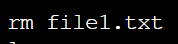
A Linux system provides rm for data removal. To delete file file1.txt, type the following:
However, it's much safer to install a trash command, such as trashy or trash-cli. Then you can send files to a staging area before deleting them forever.
5) Copy file and directory
Copy files with the cp command. The syntax is copy from-here to-there. Here's an example:

You can copy entire directories, too:

6) Print work directory (pwd)
The pwd command prints your working directory. In other words, it outputs the path of the directory you are currently working in.
7) Create an empty files (touch)
Easily create an empty file with the touch command. You can create multiple files at a time:

8) Escalate Privileges (sudo)
While administering your system, it may be necessary to act as the super user (also called root). This is where the sudo (or super user do) command comes in. Assuming you're trying to do something that your computer alerts you that only an administrator (or root) user can do, just preface it with the command sudo:

9) Shutdown (poweroff)
The poweroff command does exactly what it sounds like: it powers your computer down. It requires sudo to succeed. There are actually many ways to shut down your computer and some variations on the process. For instance, the shutdown command allows you to power down your computer after an arbitrary amount of time, such as 60 seconds:

- 10) Restart you computer
You can also restart your computer with sudo shutdown -r now or just reboot.


